Synopsis #
This guide combines dwm for window management, dmenu for launching commands, st for a terminal, and surf for browsing. tabbed can contain several surf windows, and slock locks the display. The tools are independent: st, surf, and dmenu can also be used with OpenBSD’s base cwm(1) or another window manager.
Begin with a working X session . Keep a copy of the existing session file so the previous desktop remains easy to restore. Use packaged tools first; source customization is optional.
Install the Tools #
doas pkg_add dwm dmenu st surf tabbed slock
If package selection offers both plain st and a scrollback flavor, choose the desired variant. The plain version does not provide a terminal scrollback buffer; use a terminal multiplexer such as tmux(1) for scrollback, or select the packaged scrollback flavor.
The small browser interface does not imply a small browser engine. surf depends on WebKitGTK and its supporting libraries. Keep it and its dependencies updated with the rest of the packages.
Start a dwm Session #
Save the existing ~/.xsession if it exists. For xenodm(1)
, save the following as ~/.xsession:
#!/bin/sh
xsetroot -solid '#203040'
xsetroot -name 'OpenBSD'
exec /usr/local/bin/dwm
Make it executable:
chmod u+x ~/.xsession
Log out and log in again. For startx(1), put the same script in ~/.xinitrc. Preserve the distinction between these two session files; see X session configuration
.
Launch and Arrange Applications #
The packaged defaults use Alt as the modifier. Configuration changes can alter these bindings.
| Shortcut | Action |
|---|---|
| Alt+Shift+Return | Open xterm, the packaged default terminal |
| Alt+p | Open dmenu; type an application name and press Return |
| Alt+j / Alt+k | Focus the next or previous window |
| Alt+Return | Promote the selected window to the master area |
| Alt+h / Alt+l | Change the master area’s width |
| Alt+1 through Alt+9 | View a tag |
| Alt+Shift+1 through Alt+Shift+9 | Assign the selected window to a tag |
| Alt+t / Alt+f / Alt+m | Select tiled, floating, or monocle layout |
| Alt+Shift+c | Close the selected application |
| Alt+Shift+q | Quit dwm and end this session |
Tags group windows. A window can belong to more than one tag, and more than one tag can be viewed at once. Start with one tag per task before adding more elaborate arrangements.
To use st, press Alt+p, type st, and press Return. Installing st does not change dwm’s compiled terminal binding; changing that binding is an optional source customization.
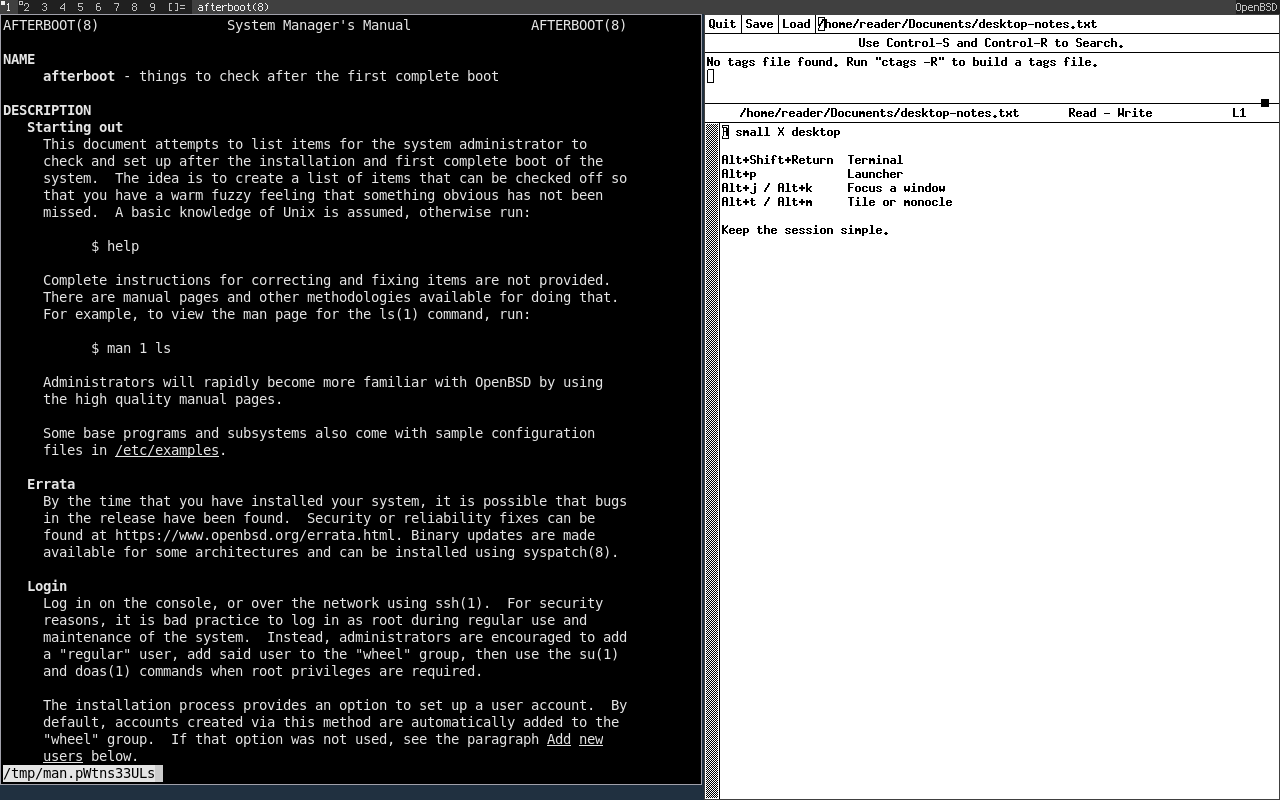
Use st as a Terminal #
Select a readable font when starting a terminal:
st -f 'monospace:size=12'
Select text with the mouse. Middle-click pastes the primary selection; Ctrl+Shift+c and Ctrl+Shift+v copy and paste through the clipboard. Test the font with the text and symbols actually used in the terminal. Font fallback depends on installed fonts.
For scrollback with the plain package:
st -e tmux
Press Ctrl+b, then [ to enter tmux’s copy mode and inspect earlier output; q leaves copy mode. The terminal’s font and window options do not require rebuilding it. Use man 1 st for the terminal manual; st(4) describes tape devices.
Browse with surf #
Open a page from a terminal:
surf https://www.openbsd.org/
Ctrl+g opens URL entry through dmenu. Ctrl+h and Ctrl+l move backward and forward, and Ctrl+r reloads the page. Follow ordinary links with the mouse. Check surf(1) for the complete bindings and download behavior; surf does not provide the menus and download manager of a full browser.
To contain browser windows in a tabbed interface:
tabbed -c surf -e
In tabbed, Ctrl+Shift+Return opens another tab. Ctrl+Shift+h and Ctrl+Shift+l switch to the previous and next tabs.
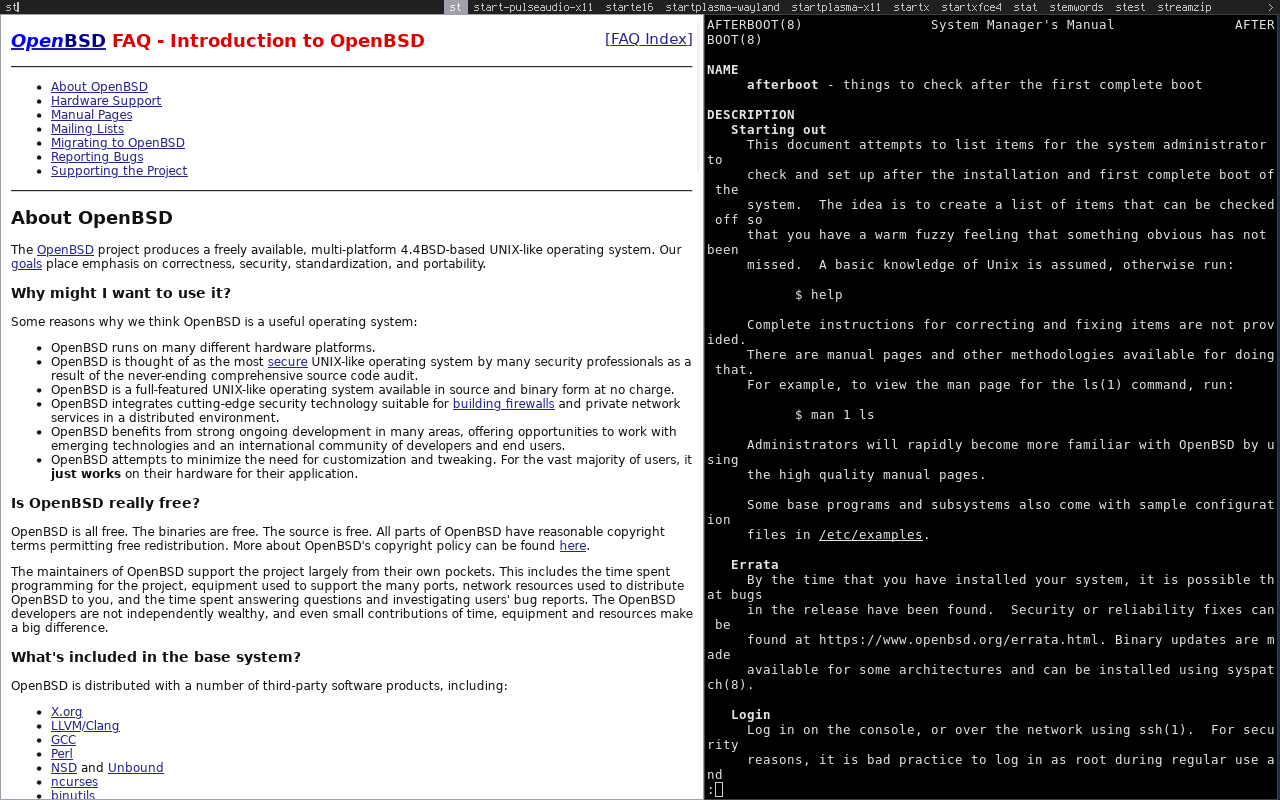
Keep another browser available when a site requires features or integrations absent from this setup. Do not disable certificate verification to make a site load.
Lock the Display #
Run the locker as the logged-in graphical user, from a terminal or dmenu:
slock
The display blanks while locked. Type the account password and press Return to unlock it. A color change indicates keyboard input or a failed attempt; there is no password dialog. Test locking and unlocking before relying on it. This command provides manual locking; it does not by itself configure idle or suspend locking.
Customize and Maintain the Setup #
The packaged defaults work without recompilation. Persistent changes to dwm’s key bindings and rules, and many defaults in other suckless tools, are compiled from config.h. Runtime command options still apply where the individual tool supports them.
For source changes, use a release-matched ports tree and the ports build workflow . Keep the configuration change small, retain its patch, and rebuild a package rather than overwriting package-managed files with an unmanaged installation. Review that patch when updating to another version.
The text displayed at the right of dwm’s bar comes from the root window name:
xsetroot -name "$(date '+%a %H:%M')"
This updates the bar once. A recurring status program is optional; start with the information actually needed.
Return to the Previous Desktop #
Restore the saved session file, then use Alt+Shift+q to quit dwm. The next graphical login uses the restored configuration. Close or save application work before ending the session.
For login failures, inspect ~/.xsession-errors and verify the final executable in the session script. For application crashes, use the relevant browser diagnostics
or package manual before adding patches.