OpenBSD Handbook

    Theme
    • Part I. Install & Configure
      • Introduction to OpenBSD
      • Installing OpenBSD
      • The X Window System
      • Networking on OpenBSD
      • System Configuration
      • OpenBSD Basics
      • Managing Software: Packages and Ports
    • Part II. Daily Operations
      • OpenBSD Desktop Environments
      • Multimedia
      • Printing
      • Linux Compatibility
      • Windows Compatibility
      • Games
    • Part III. System Administration
      • Virtualization
      • Storage and File Systems
      • Updating and Upgrading
      • Localization
      • The OpenBSD Boot Process
      • Security
    • Part IV. Networking & Daemons
      • Services
        • Database
          • MariaDB
          • PostgreSQL
          • Redis
          • memcached
        • Directory
          • YP (NIS)
          • LDAP
        • File
          • NFS
          • Samba
        • FTP Services
          • ftpd
          • ProFTPD
          • vsftpd
          • Pure-FTPd
          • TFTP
        • Mail
          • OpenSMTPD Mail Server
          • Dovecot IMAP and POP3 Server
          • Postfix
          • Exim
          • Rspamd
        • Name
          • Unbound DNS Resolver
          • NSD Authoritative DNS Server
          • BIND DNS Server
        • Networking
          • OpenBGPD
          • rad
          • DHCP on OpenBSD
          • slaacd
        • Web
          • Apache HTTP Server
          • nginx Web Server
          • OpenBSD httpd Web Server
          • relayd Reverse Proxy
        • Logging
          • syslogd
        • Monitoring
          • SNMP
        • Remote Access
          • Audit OpenSSH
          • OpenSSH Server
        • File Synchronization
          • rsync
        • Messaging
          • RabbitMQ Message Broker
        • Time
          • NTP Time Synchronization
      • PF
        • pfctl cheat sheet
        • PF Anchors
        • PF Filter Rules
        • PF Forwarding
        • PF Lists and Macros
        • PF Load Balancing
        • PF Logging
        • PF NAT
        • PF Options
        • PF Policies
        • PF Shortcuts
        • PF Tables
      • Advanced Networking
        • High Availability and State Replication
        • Multi-WAN and Policy-Based Routing
        • VPN and Cryptographic Tunneling
        • Classic and Lightweight Tunnels
        • IPv6 at Scale
        • QoS and Traffic Shaping
        • MPLS and Label Distribution
        • Network Services at Scale
        • Virtualization and Host Networking
        • Large-Scale L2 and L3 Design
        • Telemetry, Logging, and Flow Export
        • Hardening and Operational Safety
        • Reference Architectures
        • Troubleshooting Playbooks
      • Serial Communication
    • Part V. Miscellaneous
      • Virtualization Cheat Sheet
      • OpenBSD Cheatsheet
      • How-to Guides
        • Installation and First Boot
          • Complete the First 30 Minutes After Installation
          • Check Hardware Compatibility Before Installing
          • Bootstrap Wi-Fi Firmware Without Ethernet
          • Run OpenBSD as a Virtual Machine Guest
          • Install OpenBSD on a VPS or Cloud Server
          • Install OpenBSD with Full-Disk Encryption
          • Dual-Boot OpenBSD on a UEFI System
          • Automate OpenBSD Installation with Autoinstall and PXE
        • Desktops and Laptops
          • Set Up OpenBSD as a Laptop or Workstation
          • Configure Laptop Power Management
          • Troubleshoot Web Browsers on OpenBSD
          • Use Plan 9 Tools on OpenBSD
          • Build a Minimal Desktop with suckless Tools
          • Install Z shell (zsh)
        • Networking and Remote Access
          • Create an Administrator Account with doas and SSH Keys
          • Configure Secure Remote Access with OpenSSH
          • Use FIDO Security Keys with OpenSSH
          • Configure Wi-Fi Roaming and Wired Failover
          • Troubleshoot PF, NAT, and Routing
          • Route Multiple VLANs with PF
          • Configure a Road-Warrior WireGuard VPN
          • Route IPv6 Networks without NAT
          • Test OpenBGPD with Two Providers
          • Unlock an Internal Service with an SSH Key
          • Build a Simple Router and Firewall
        • Servers and Services
          • Set Up WordPress on OpenBSD
          • Build a Mail Server with OpenSMTPD, Dovecot, and Rspamd
        • Security, Maintenance and Recovery
          • Establish a Conservative Security Baseline
          • Recover Access and Reset the Root Password
          • Collect OpenBSD Diagnostic Evidence
          • Troubleshoot Package Installation and Update Failures
          • Schedule Recurring Maintenance
          • Monitor an OpenBSD System
          • Back Up and Restore an OpenBSD System
          • Configure softraid RAID1
          • Recover an OpenBSD System That Does Not Boot
        • Building, Automation and Virtual Machines
          • Manage OpenBSD with Ansible
          • Build Third-Party Software from Ports
          • Build OpenBSD from Source
          • Plan a Docker Workload Migration to OpenBSD
      • OpenBSD for Linux Users
      • OpenBSD for FreeBSD Users
      • OpenBSD for macOS Users
    • OpenBSD FAQ
    • OpenBSD Architectures
      • OpenBSD Package Search
        • Synopsis
        • Install and Launch the Tools
        • Edit a File with Acme
        • Use Sam for File Editing
        • Try the rio Window Manager
        • Troubleshooting

        Use Plan 9 Tools on OpenBSD

        Synopsis #

        The plan9port package brings Plan 9 applications to OpenBSD. It includes the Acme and Sam editors, the 9term terminal, and an X window manager named rio. These applications run on OpenBSD; installing them does not install the Plan 9 operating system.

        Start by running the tools inside an existing graphical session. Replacing the window manager is optional. A three-button mouse, or a working middle-button emulation, makes the editors easier to use.

        Install and Launch the Tools #

        Install the package:

        doas pkg_add plan9port
        

        Use the 9 wrapper to select the Plan 9 version of a command:

        9 acme
        9 sam notes.txt
        9 9term
        

        Each command opens a graphical application. Run them separately or add & when launching several from one terminal. The wrapper selects the tools for that command without changing the login shell’s PATH or replacing similarly named OpenBSD utilities.

        Read the package instructions and introductory manual:

        less /usr/local/share/doc/pkg-readmes/plan9port
        9 man 1 intro
        

        Edit a File with Acme #

        Create a small working directory and open it:

        mkdir -p ~/Documents/plan9
        printf '%s\n' 'Notes for the week' 'Read the afterboot manual.' > ~/Documents/plan9/notes.txt
        cd ~/Documents/plan9
        9 acme notes.txt
        

        Acme divides its interface into columns containing text windows. Each window has a tag line with its file name and commands such as Del, Get, and Put.

        ActionMouse operation
        Select and edit textLeft button
        Execute a command, including Put to saveMiddle button
        Open a file name or search for textRight button

        Edit the note, then middle-click Put in that window’s tag to save it. Middle-click New in a column tag to create another text window. Type pwd into its body and middle-click the word to run the command; Acme opens an output window. Check that the saved file contains the edit from another terminal.
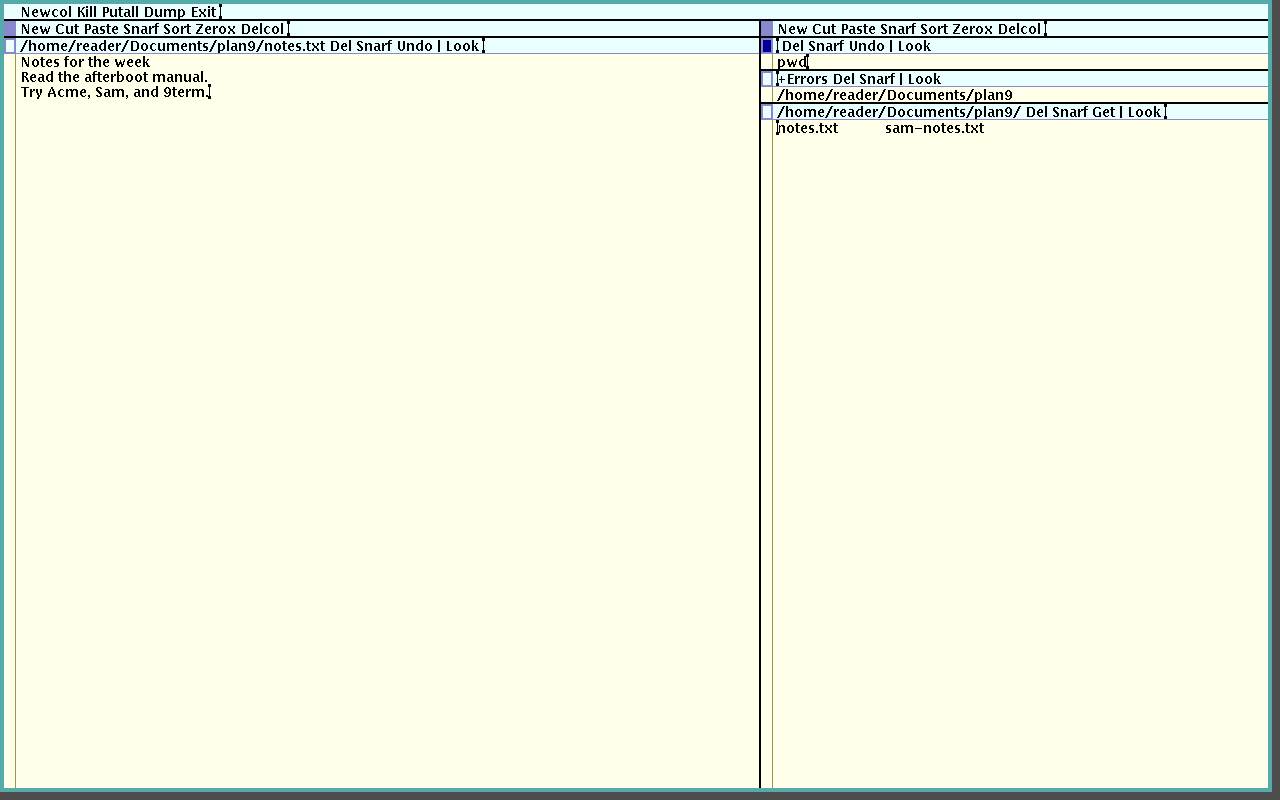
        Acme displays a notes file, its directory, and a command output window in two text columns.
        Acme keeps editable text, file names, and executable commands in the same interface.

        Middle-click Del to close a window. A modified window requires a second Del before discarding unsaved changes. Use Put first when the changes should be kept.

        Use Sam for File Editing #

        Sam provides a command window and a separate view of the file:

        9 sam ~/Documents/plan9/notes.txt
        

        Select and edit text in the file window. In the command window, w writes the current file and q quits. Sam’s command language also supports addressed edits across files. Start with the sam(1) manual before using commands that change several files.

        Try the rio Window Manager #

        The plan9port version of rio is an X window manager modeled on Plan 9’s window system. It takes the place of the existing window manager for that session. Do not start it alongside another window manager on the same display.

        After confirming that the X session works, save the current ~/.xsession if it exists. For xenodm(1) , use:

        #!/bin/sh
        export PATH="$PATH:/usr/local/plan9/bin"
        exec /usr/local/bin/9 rio
        

        Save that script as ~/.xsession, then make it executable:

        chmod u+x ~/.xsession
        

        Log out and log in again. For startx(1), use the same script as ~/.xinitrc; see X session configuration .

        Right-click the background to open rio’s window menu. Choose New, then hold the right button and drag a rectangle for a terminal. Move, Reshape, Hide, and Delete operate on selected windows. Choose a hidden window’s name from the same menu to restore it.
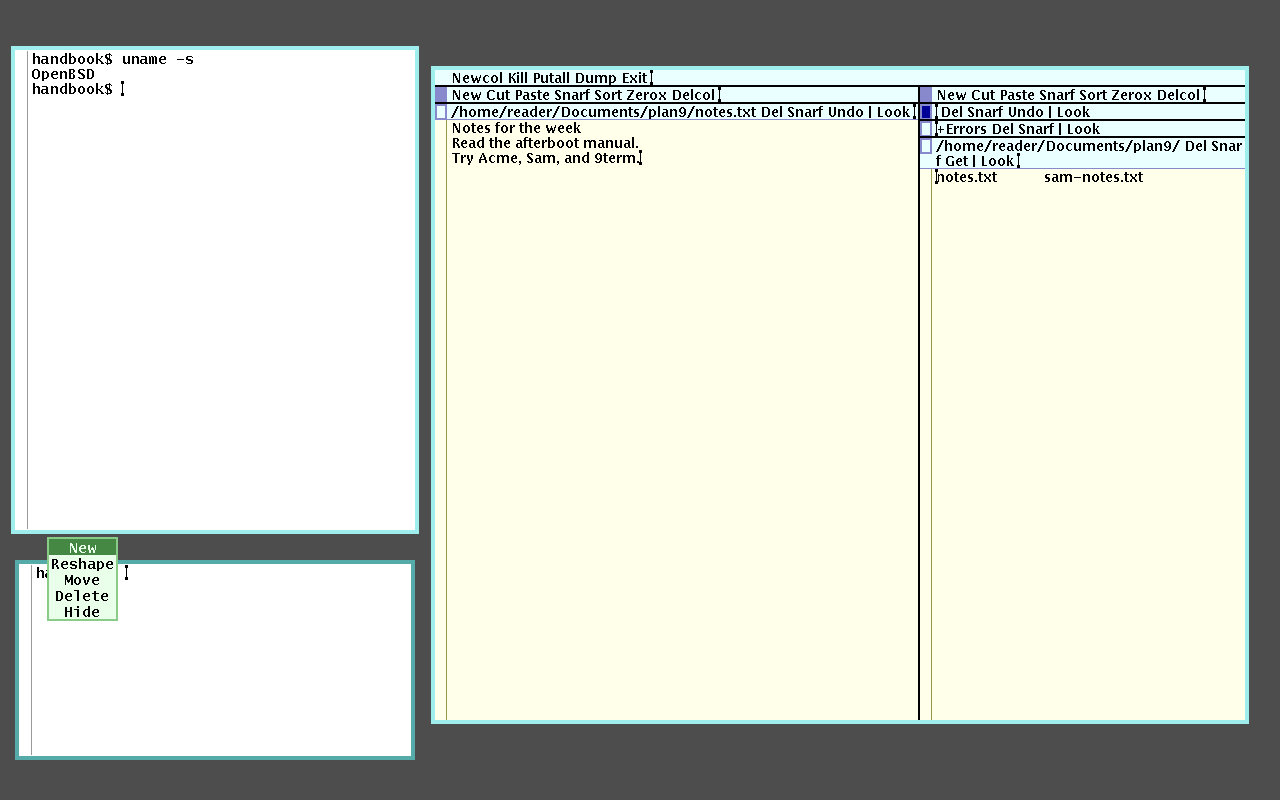
        rio arranges terminal and editor windows with its right-button window menu open.
        rio uses a background menu and mouse-drawn rectangles to manage windows.

        Use 9 rio exit from a terminal to end rio. When it is the final exec in .xsession, exiting it ends the graphical session. Restore the previous session file before the next login to return to the previous window manager.

        Troubleshooting #

        • An OpenBSD command behaves differently: keep Plan 9 commands out of the front of PATH; launch them through 9.
        • The editor does not respond as expected: confirm which mouse button the application receives, especially through a remote viewer or a touchpad.
        • rio reports another window manager: log out of the current session before selecting rio in the session file.
        • The graphical login returns immediately: inspect ~/.xsession-errors and verify the command paths in the session file.

        See the plan9port documentation for the application manuals and differences from native Plan 9.

        Report a bug
        • Synopsis
        • Install and Launch the Tools
        • Edit a File with Acme
        • Use Sam for File Editing
        • Try the rio Window Manager
        • Troubleshooting